Overview
This article explains how to view events your student's school has shared with you and how to register for events you are invited to attend.
TABLE OF CONTENTS
- Receiving Event Invitations
- Viewing Event Details
- Registering for an Event
- Checking Your Registration Status
Receiving Event Invitations
When your student's school publishes an event that includes parents or guardians, you will receive a notification via Overgrad and/or an email (depending on your notification preferences). Email will come from notifications@overgrad.com. Not all events include parents; as such you will only see events for which you or your child have been made eligible by your school.
If you would like to update how you receive notifications, click your name in the top right corner of your dashboard, select Settings, and update your preferences under the Notifications section.
Viewing Event Details
- Log in to your Overgrad account at overgrad.com.
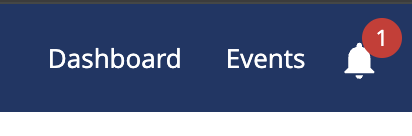
- Select the Events option from the navigation menu.
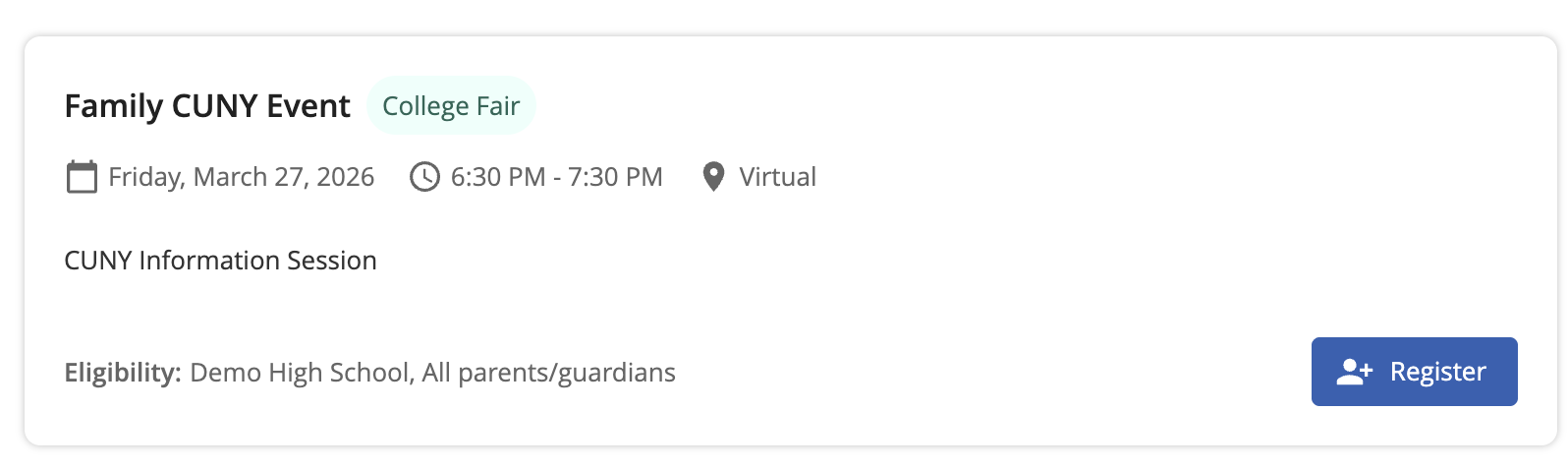
- Browse upcoming events using All Events.

- Click on any event to view its details, including the date, time, location, description, and any attached documents such as flyers or permission slips.
If you have questions about a specific event, such as its purpose or requirements, use the contact information listed on the event details page, or reach out to your child's counselor directly via the Message Counselor link on your dashboard.
Registering for an Event
If registration is open for an event you have been invited to:
- Open All Events from your Events view.
- Select the blue Register button on the event overview page or event details page.
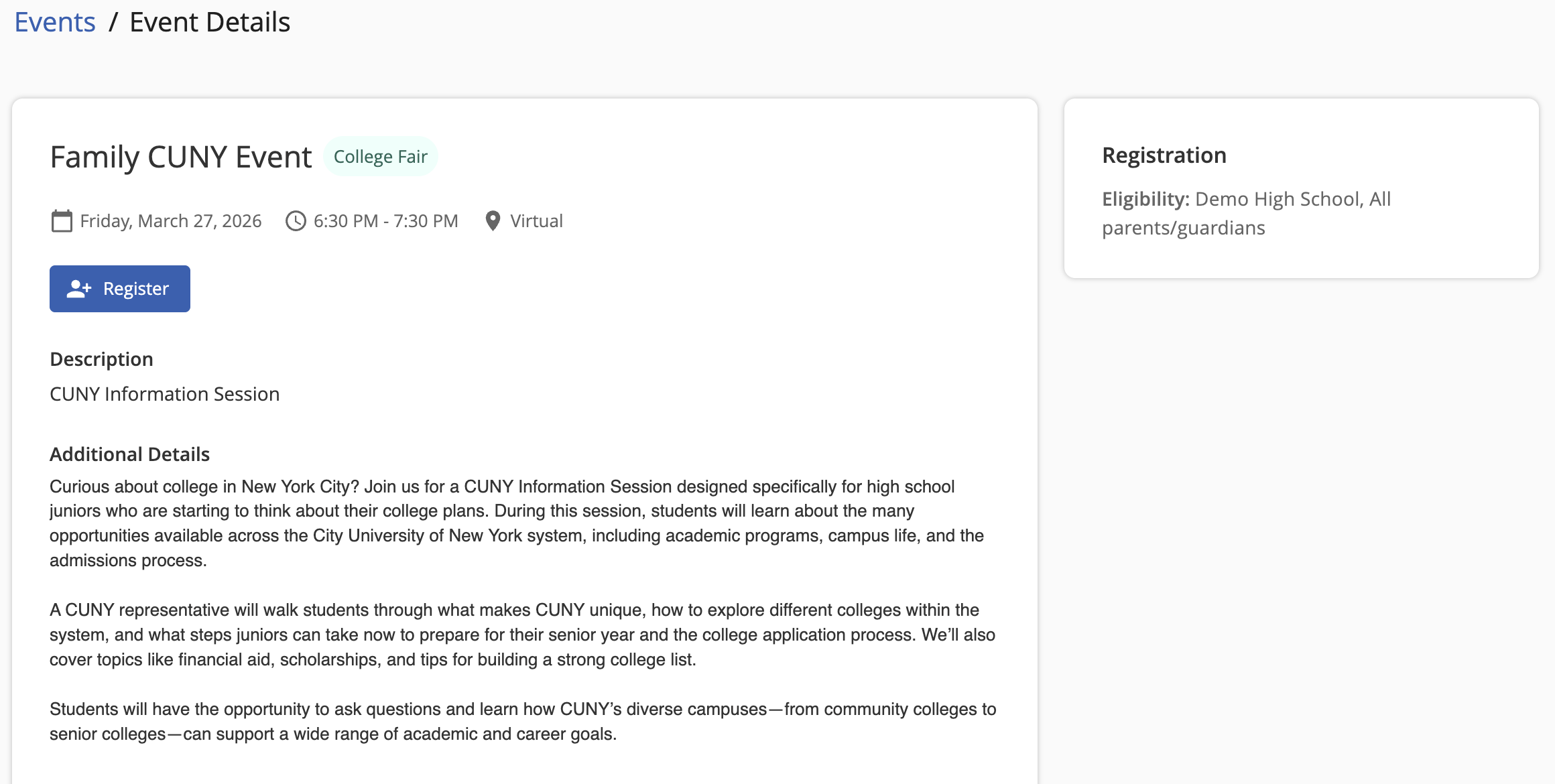
- If the event includes a form, complete all required fields before submitting. You may also see available forms after registration on the event details page.
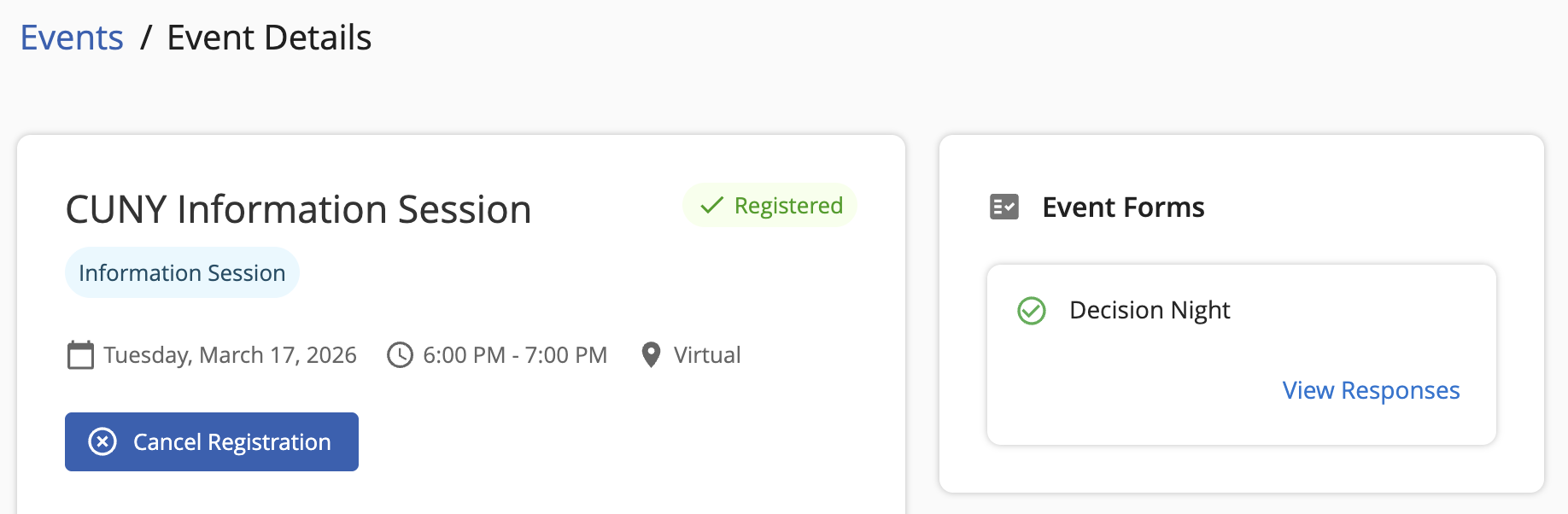
- Once registered, you will receive a confirmation in Overgrad and/or by email based on your notification preferences. You may also receive reminders one week and one day before the event if your school has enabled reminders.
If the event is full, you may be added to a waitlist if it is enabled. You will be notified if a spot opens up and you are moved to the registered list.
If there is no Register button, school staff may be handling registration. Contact your child's counselor if you would like to attend.
Checking Your Registration Status
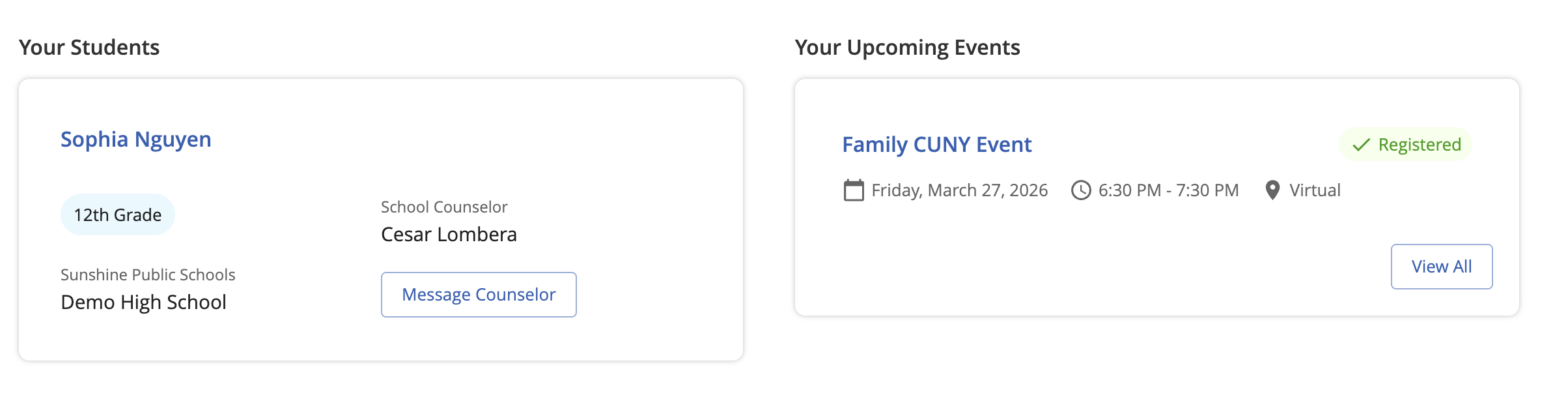
To confirm that you are registered for an event, navigate back to your Dashboard or Events. Your current status, Registered or Waitlisted, will be shown on the event information card and details page.
This feature is only available to Overgrad Pro customers. You must have a linked Overgrad parent account to receive event invitations and register for events. If you do not yet have an account, please reach out to your child's school or organization.
Was this article helpful?
That’s Great!
Thank you for your feedback
Sorry! We couldn't be helpful
Thank you for your feedback
Feedback sent
We appreciate your effort and will try to fix the article