Overview
This article is for parents and guardians who have been invited to access their student's Overgrad account. It covers how to accept your invitation, review your student's milestones and progress, message their counselor, and manage your notification settings.
TABLE OF CONTENTS
- Accessing Your Parent Account
- Accepting Invitations
- Reviewing Your Student's Progress and Activities
- Communicating with Your Student's Counselor
- Managing Notifications
Accessing Your Parent Account
When your student's school invites you to Overgrad, you will receive an email from hello@overgrad.com to activate your Overgrad account if you do not already have one, or log in and accept the invitation if your account already exists. If you have questions, you can respond directly to that email. If you have forgotten your password, follow these instructions.
Accepting Invitations
When you first log in, you will be taken to your Dashboard where you can view the invitations linked to your account. If you have new invitations, click the Accept box to add this child to your dashboard:
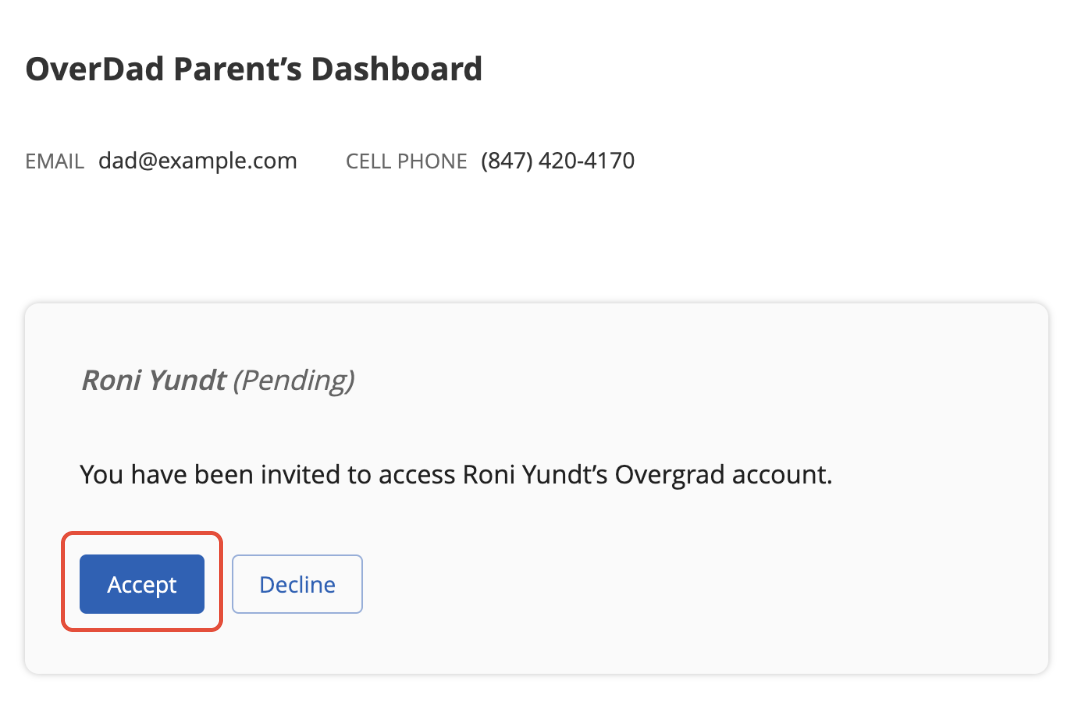
If you believe you were invited by accident, decline the invitation.
Reviewing Your Student's Progress and Activities
From your dashboard, click on your child's name:
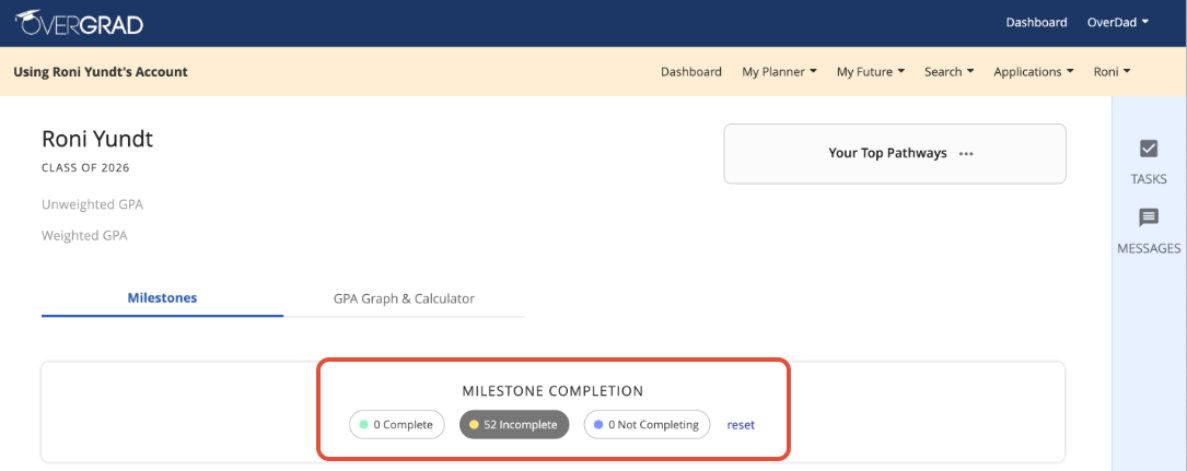
You will land on the student dashboard page, which lists Milestones, or key actions, that your child should complete each year. Use the Milestone Completion filters to see outstanding Milestones, and click into Milestones for more details. Milestone details and due dates vary by school and organization, so please reach out to your child's counselor with any questions.
Milestones empower students to take ownership over their postsecondary planning process. From exploring career options to building and managing college lists, milestones help students stay organized and keep track of key accomplishments along the way. Because of their importance, Milestones serve as the dashboard for all student accounts.
Communicating with Your Student's Counselor
From your dashboard, click Message Counselor.
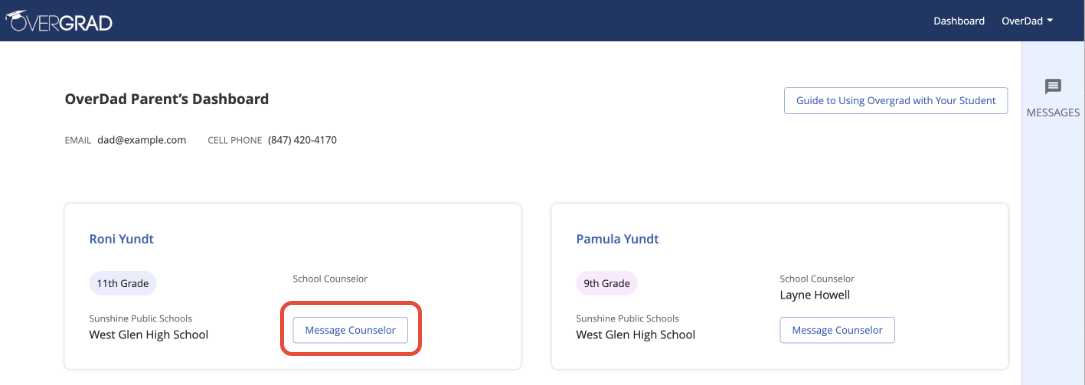
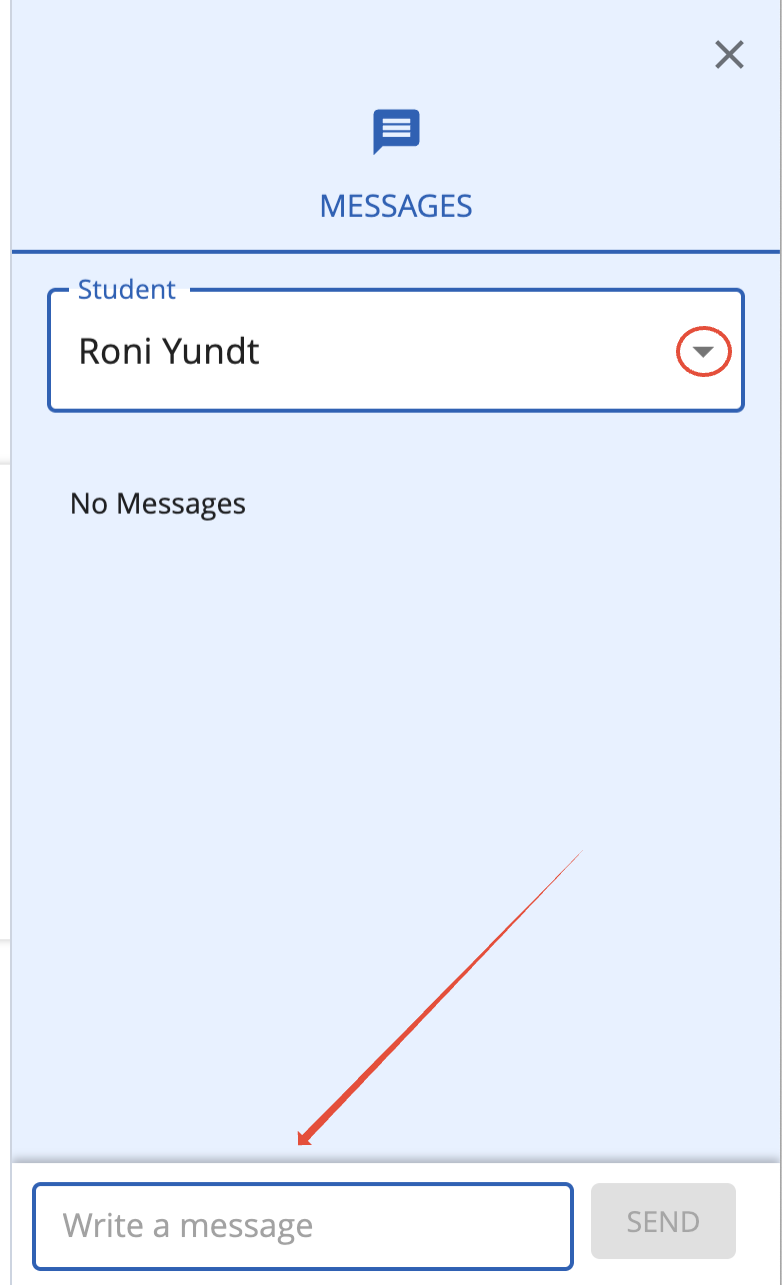
The message window on the right will expand. Here, you can confirm which student you are messaging about (if you are linked to multiple students) using the dropdown menu and compose your message in the text box:
Managing Notifications
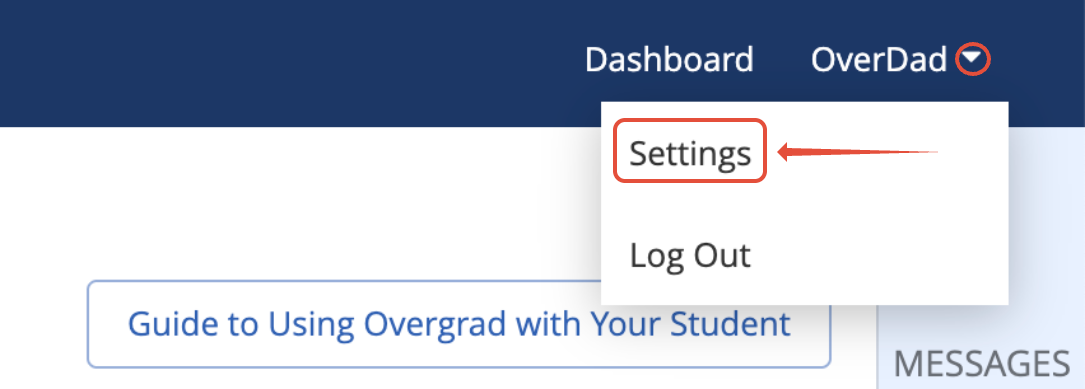
Click on the profile dropdown menu and select Settings.
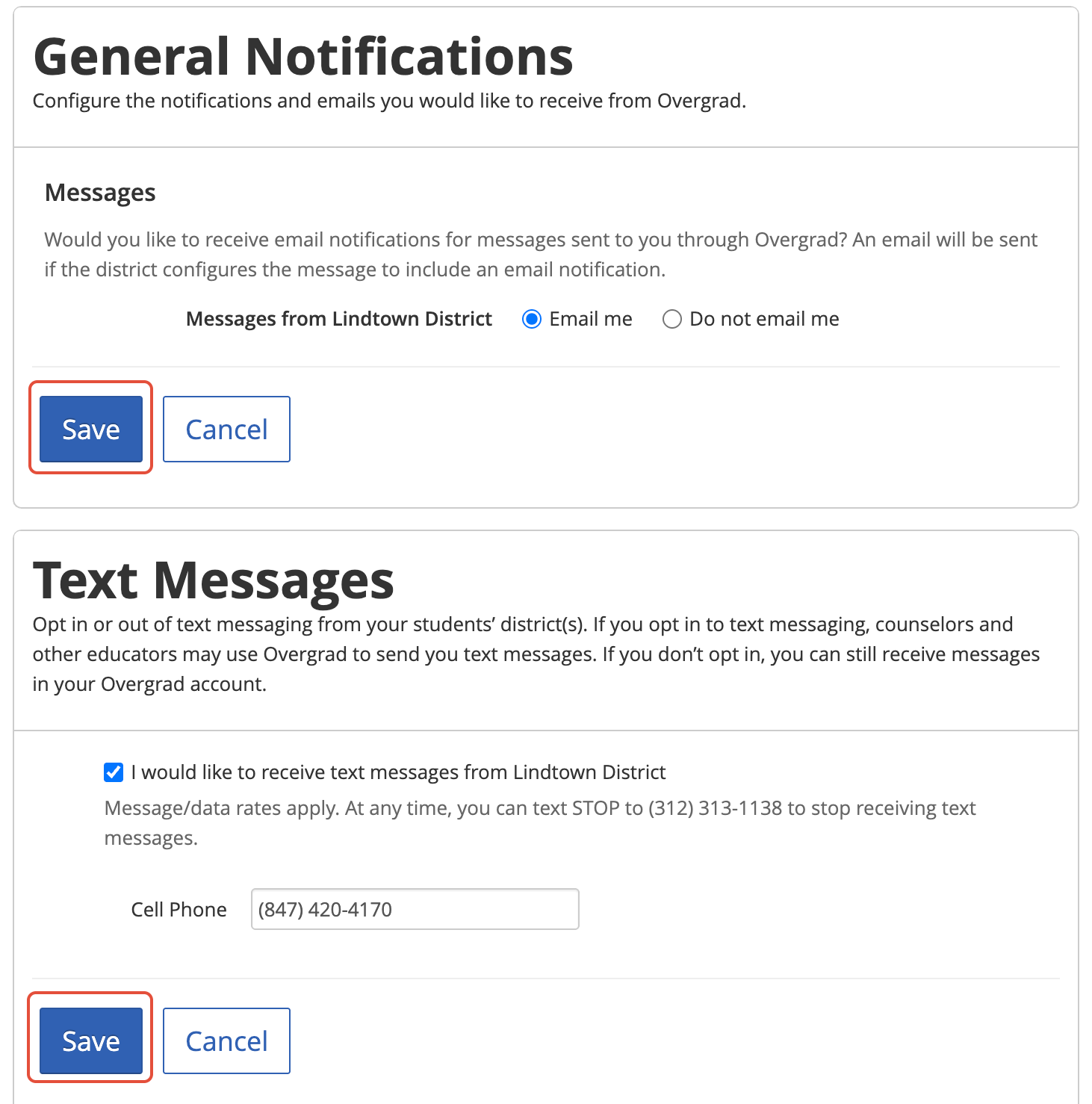
In the General Notifications section, select your preferences and click Save.
Was this article helpful?
That’s Great!
Thank you for your feedback
Sorry! We couldn't be helpful
Thank you for your feedback
Feedback sent
We appreciate your effort and will try to fix the article