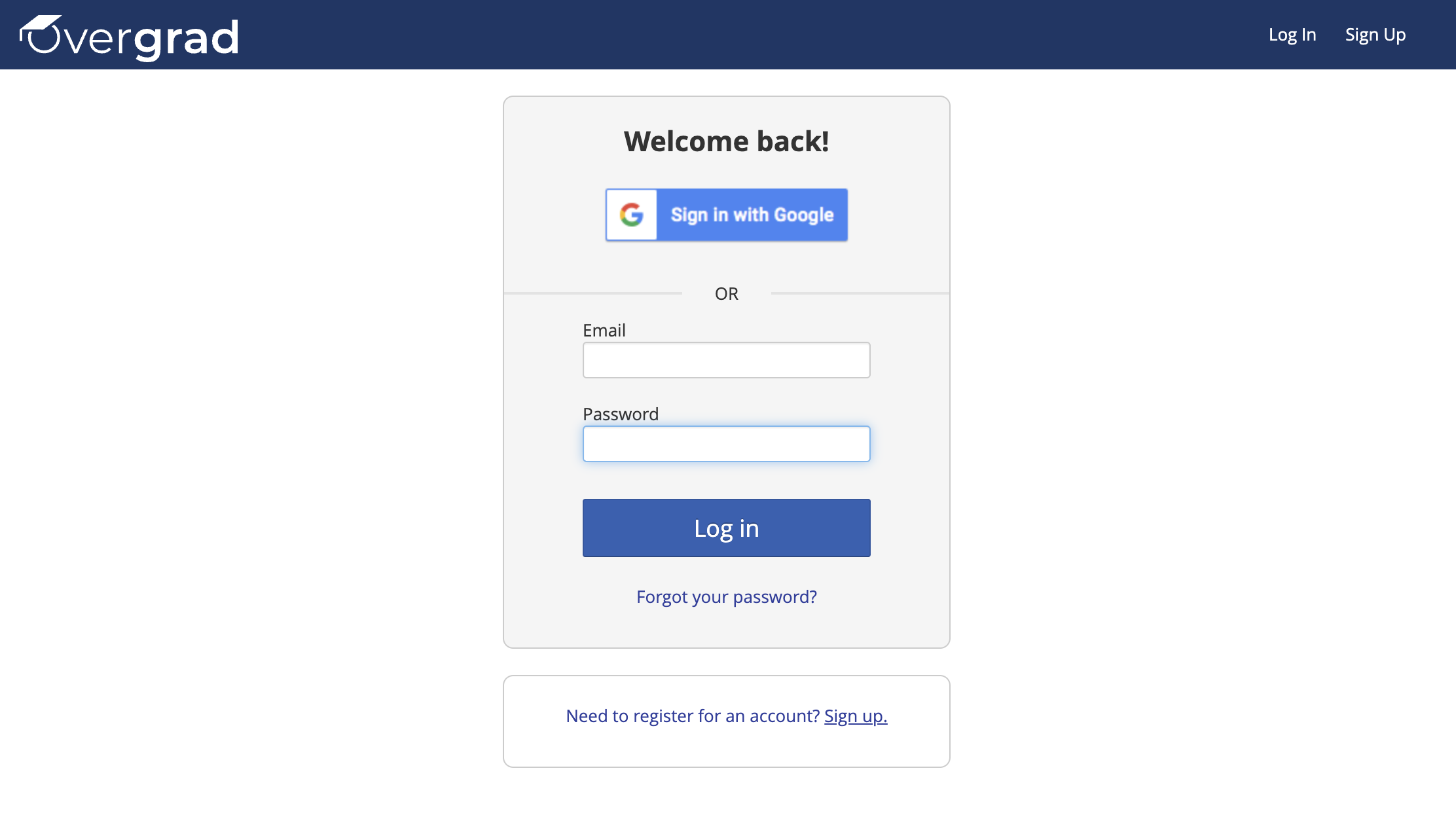
If your email address is provided by Google, you can use Google Single Sign-On (SSO) to access your Overgrad account. In order to set-up Google SSO on Overgrad:
1. Visit overgrad.com.
2. Click Log In in the top right hand corner.
3. Click Sign In with Google.
4. Enter your email and password for your Google account.
5. Allow Overgrad to view your basic account info and verify your google account by clicking Allow.
If you receive an activation error and are unable to sign in, this is due to change in Google's policy for SSO
If you are an educator
- Add a birthday to your profile following these directions; this should allow you to use SSO
- If you're unable to change your birthday, sign in with your username and password. If you forgot your password, or need to set one, you can follow these directions to reset your password
- Ask your school to whitelist https://app.overgrad.com and allow students to use single sign on.
If you are a student
- Sign in with your username and password. If you forgot your password, or need to set one, you can follow these directions to reset your password.
Was this article helpful?
That’s Great!
Thank you for your feedback
Sorry! We couldn't be helpful
Thank you for your feedback
Feedback sent
We appreciate your effort and will try to fix the article