This article will walk you through how to make a student's account "Inactive." The option to "Mark Inactive" will only be present for educators who have Account Manager access.
Directions:
1. Login to your educator account.
2. Search for the student's name using the top search bar, or find the student under "View Student List"
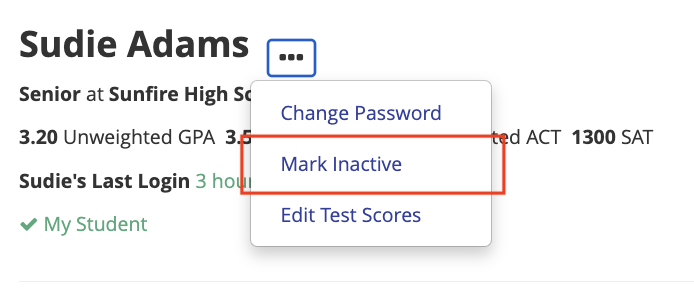
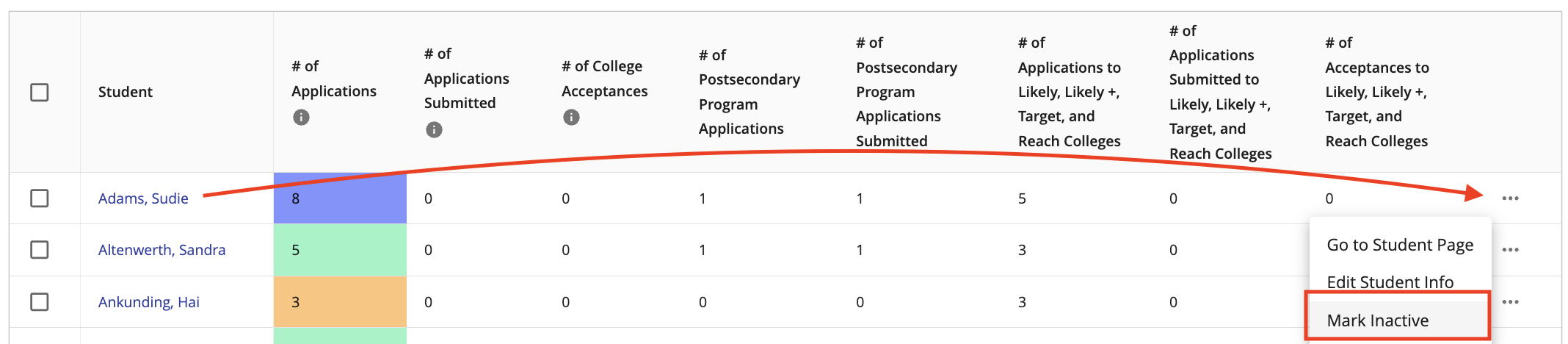
3. If you are viewing the student's profile, click the 3 dots ( . . . ) next to the student's name. If you are viewing the student list, you'll find the . . . on the right side of the page. Then click "Mark Inactive".
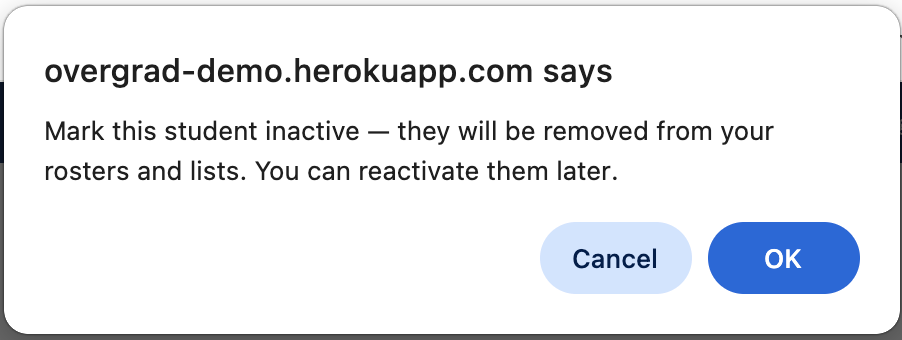
4. A popup will ask you to confirm the deletion. Click "OK".
This student has now been removed from your school account. If the student you are marking as inactive is included in your school's student upload file or SIS Sync file, then the account will be reactivated.
5. To Reactivate a student's account, add the student or add the student to a bulk upload/update import using the same account email address and ID number.
Was this article helpful?
That’s Great!
Thank you for your feedback
Sorry! We couldn't be helpful
Thank you for your feedback
Feedback sent
We appreciate your effort and will try to fix the article