This feature is only available to Overgrad Pro customers. Please connect with an Overgrad rep if you are interested in learning more.
This guide will help students:
Find and follow Programs
Update the status from "Following" to application statuses
Part 1: Finding & Following Programs
Step 1: Navigate to the Programs Page
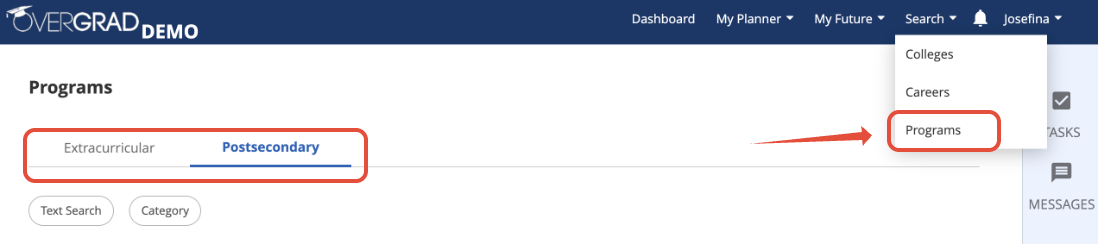
Go to the Search dropdown menu and click Programs.
You'll see two tabs:
- Extracurricular- These programs are things you might engage in while you are in high school and include things like: pre-college programs, summer programs, internships, volunteer and extracurricular opportunities.
- Postsecondary- These programs are alternatives you might pursue after high school instead of a 2 or 4 year degree and include things like: military, apprenticeships, certifications, job readiness, and sector-based job training.
Step 2: Select a Program Tab
Click either the Extracurricular or Postsecondary tab based on what you're looking for.
Step 3: Browse and search the Program Table
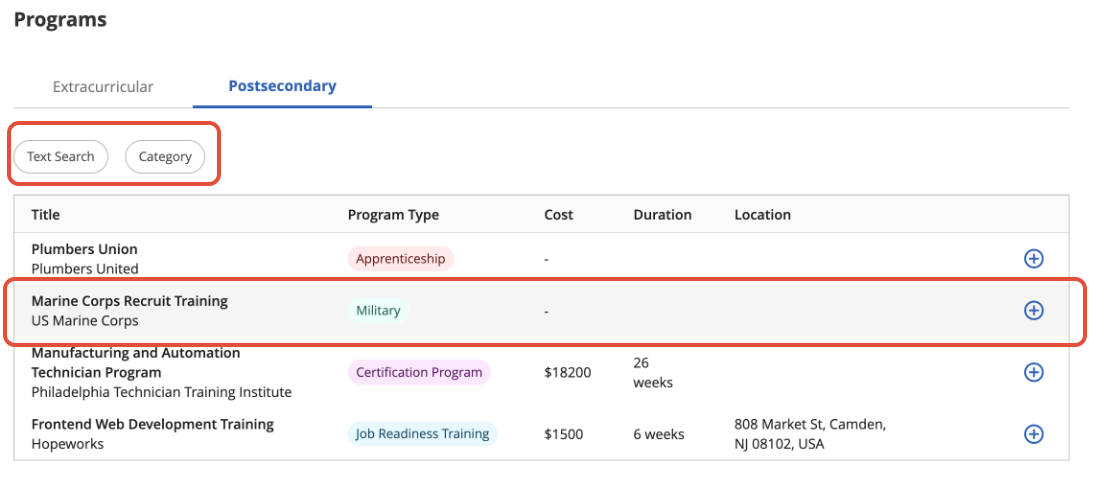
The table shows all programs added by your school or organization.
Use the Text Search or Category buttons to narrow down your list if necessary.
Click anywhere on the row for a program to view more details. The row will be highlighted gray.
Step 4: Follow a Program
On the program table page click the blue + button at the end of the row follow it.
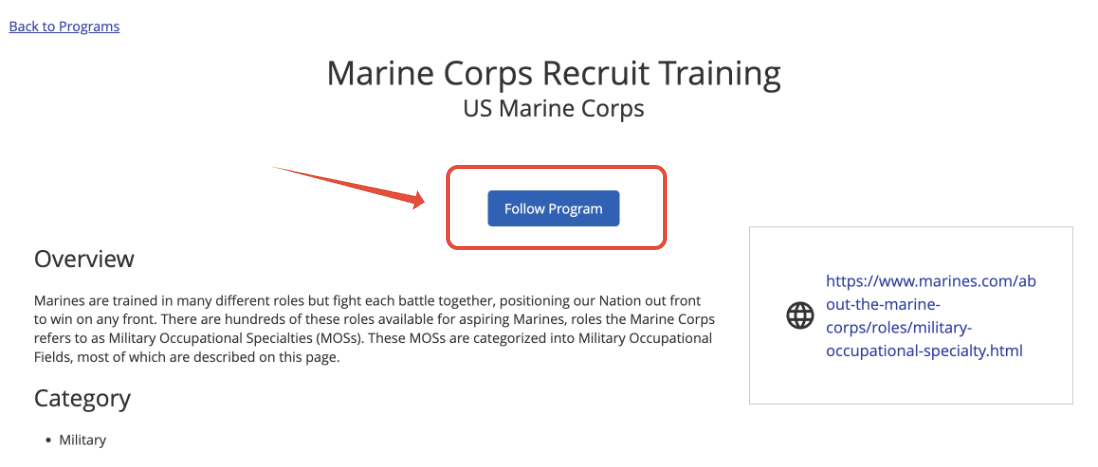
Or on the program details page, click Follow Program.
Step 5: Unfollow a Program
From the program detail page you will now see Unfollow Program in place of the Follow Program button
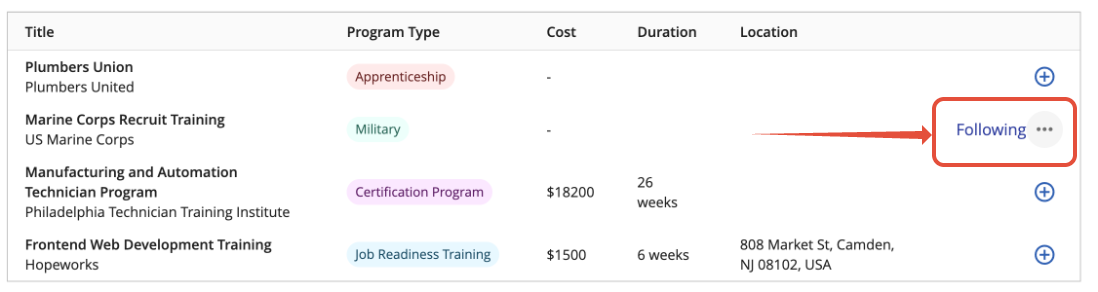
From the program table page click the ellipses (...) at the end of the row next to "Following."
Select "Unfollow".
The program will return to an unfollowed state (with the + button).
Part 2: Updating Program Application Status
Step 1: Find Your List of Followed Programs
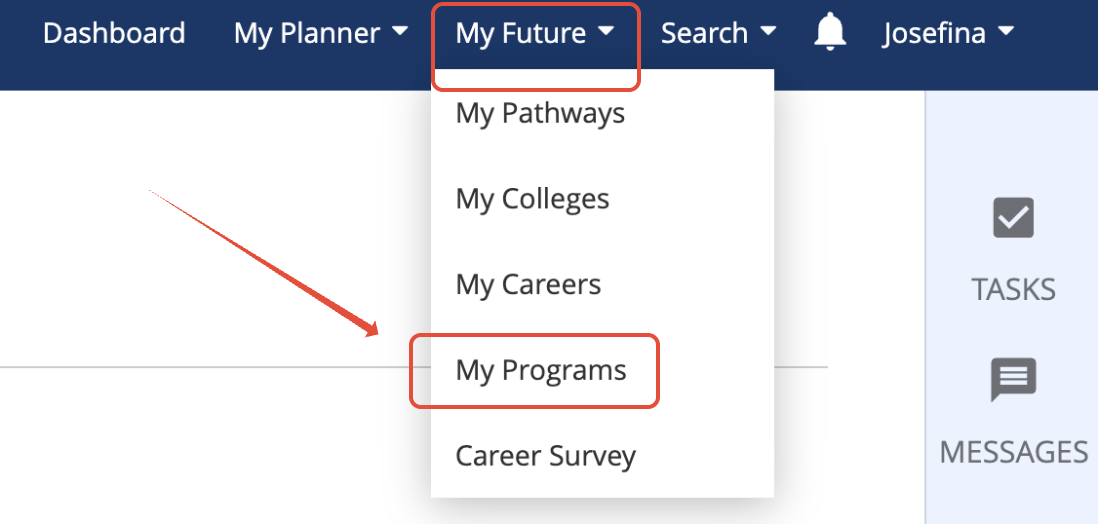
Locate the programs you've followed by going to My Future -> My Programs.
Step 2: Manage Application Info
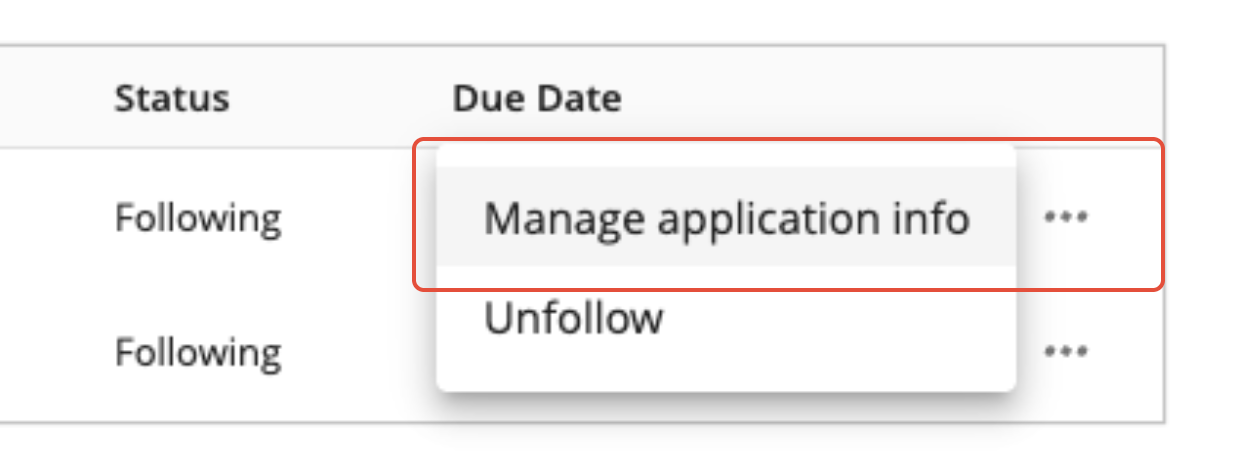
Click the ellipses (...) at the end of the row for the followed program.
Select "Manage application info."
Step 3: Update Application Details
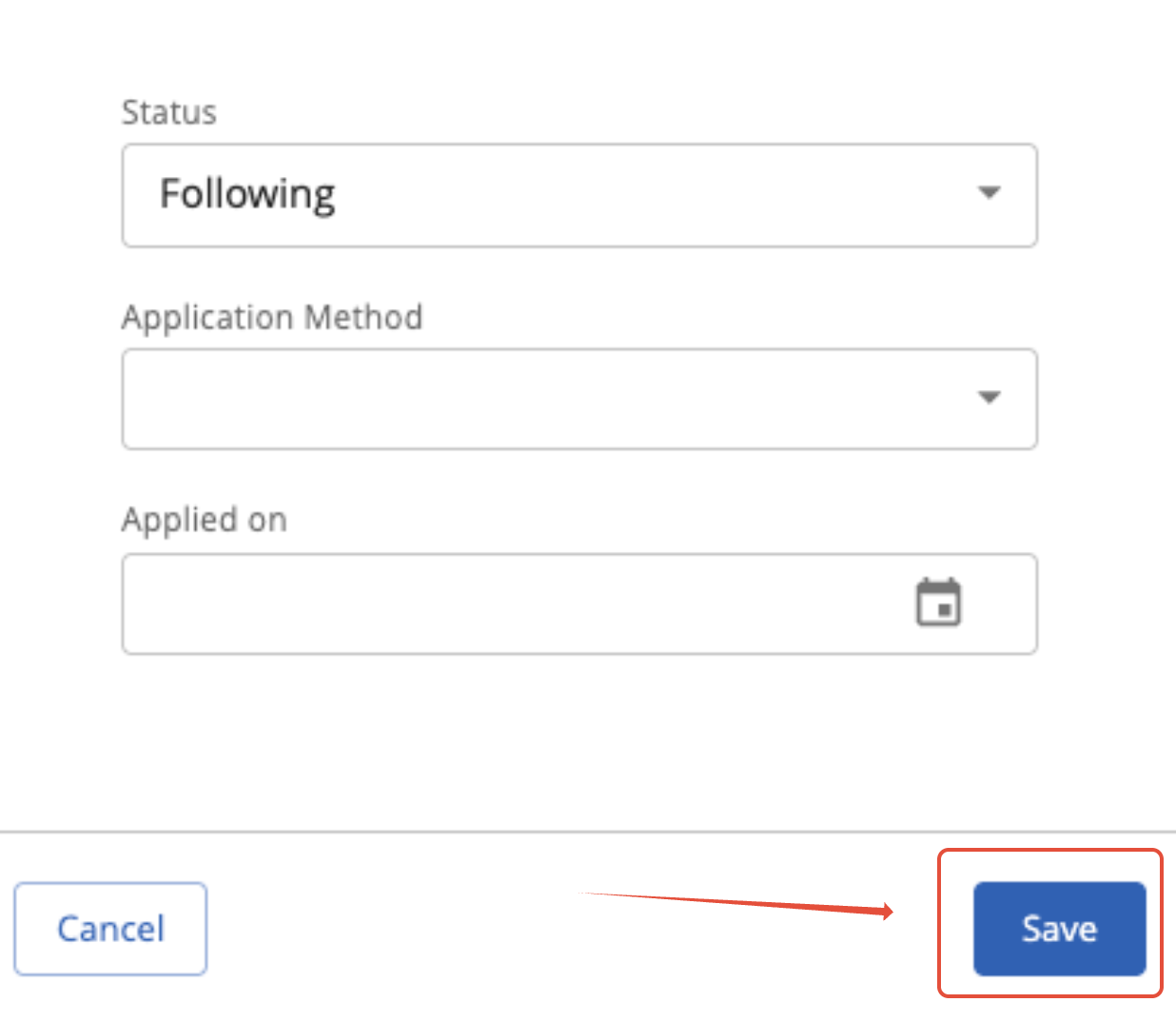
Add or update your:
Application Status : Will Apply, Applied, Did Not Apply, Accepted, Scheduled an Interview, Waitlisted, Withdrew, Denied, Enrolled
Method (how you applied): Program Website, In person or virtual interview
Date Applied
Hit Save to apply any changes you may have made
Was this article helpful?
That’s Great!
Thank you for your feedback
Sorry! We couldn't be helpful
Thank you for your feedback
Feedback sent
We appreciate your effort and will try to fix the article