If you would like to update or configure the notifications and emails you would like to receive from Overgrad, follow these steps:
- Click your name in the top right corner of the screen

- Select 'My Account'
- On the left side, select 'Notifications'
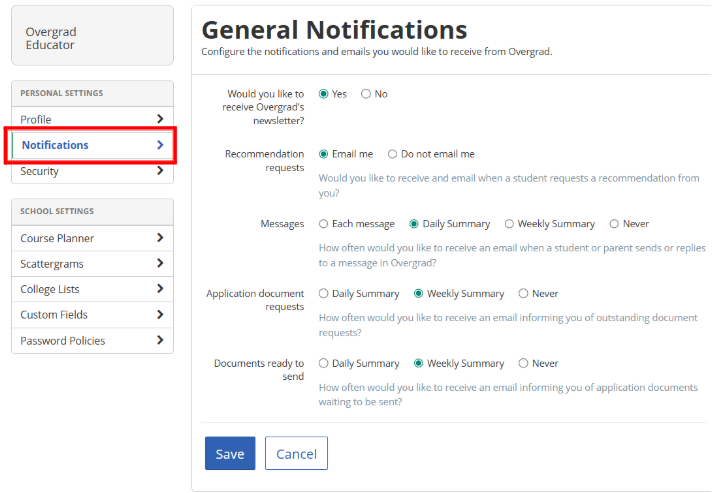
- Overgrad's newsletter: Select yes or no if you'd like to receive a bimonthly newsletter with upcoming dates, new features, and feature highlights.
- Recommendation Requests: select Email me if you would like to receive an email every time a student requests a recommendation from you.
- Messages: select how often you'd like an email when a student sends you a message in Overgrad - Each message, daily summary, weekly summary, or never.
- Application document requests and Documents ready to send: select if you'd like to receive a daily summary, weekly summary, or never. The default is set to receiving a weekly email summary to support documents needing attending in Application Manager.
- Hit Save.
Was this article helpful?
That’s Great!
Thank you for your feedback
Sorry! We couldn't be helpful
Thank you for your feedback
Feedback sent
We appreciate your effort and will try to fix the article