1. Log into your Overgrad account and select the dropdown under My Planner in the header and then Documents.
2. Click + Add Document, then select the document type.
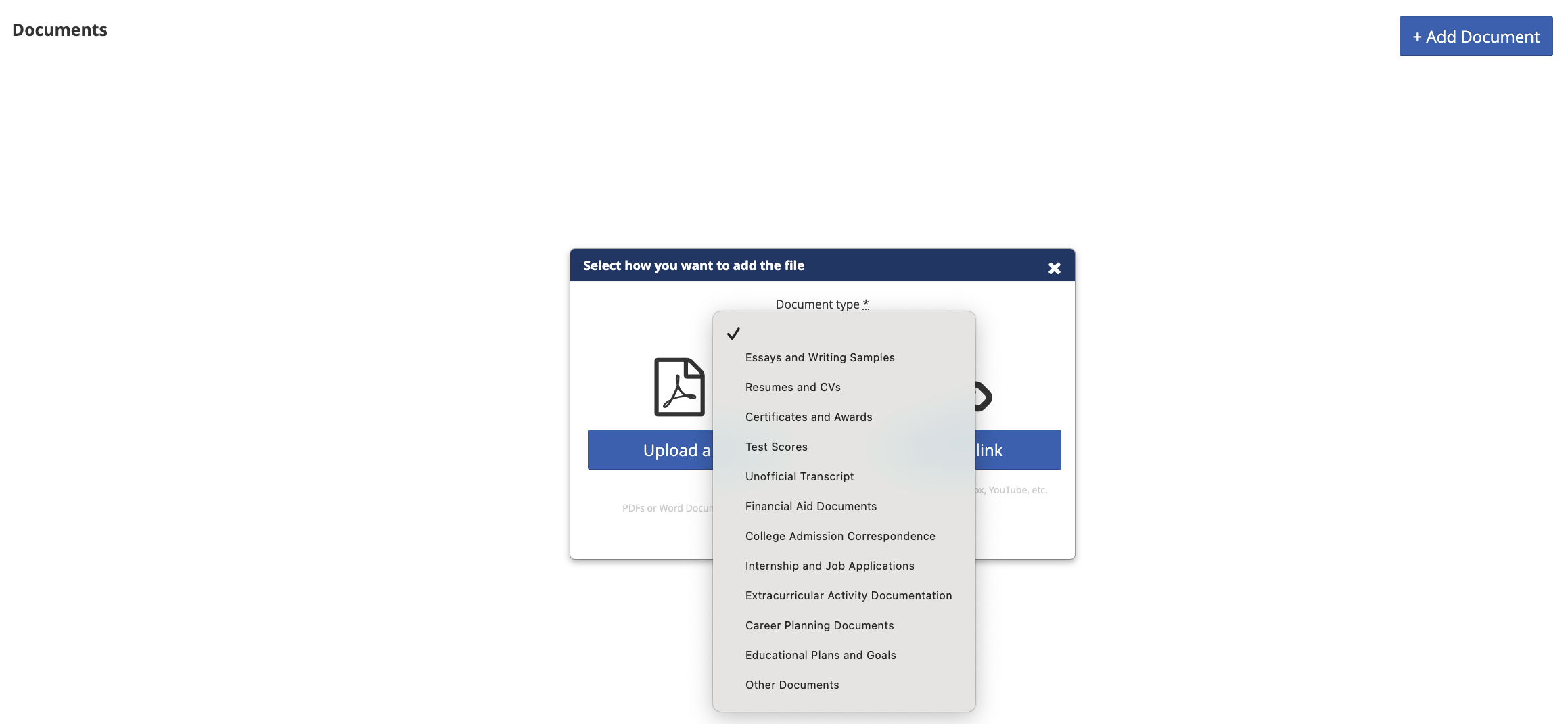 3. After selecting the document type, you can upload a file (i.e. PDF or Word document) or Add a link (i.e. Google Drive link).
4.You can only upload PDFs, Word Docs, or links to files (i.e. a Google Drive link).
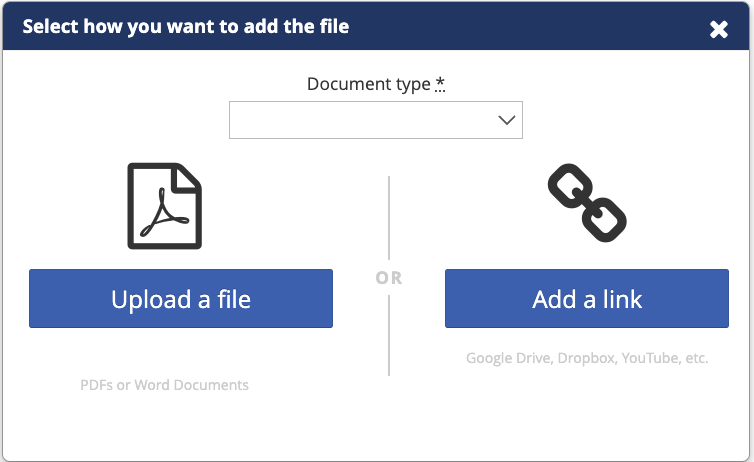
- Upload a file: Selecting this option will direct you to locate a file on your computer that you would like to upload. This file must be a PDF or Word document less than 3MB in size.
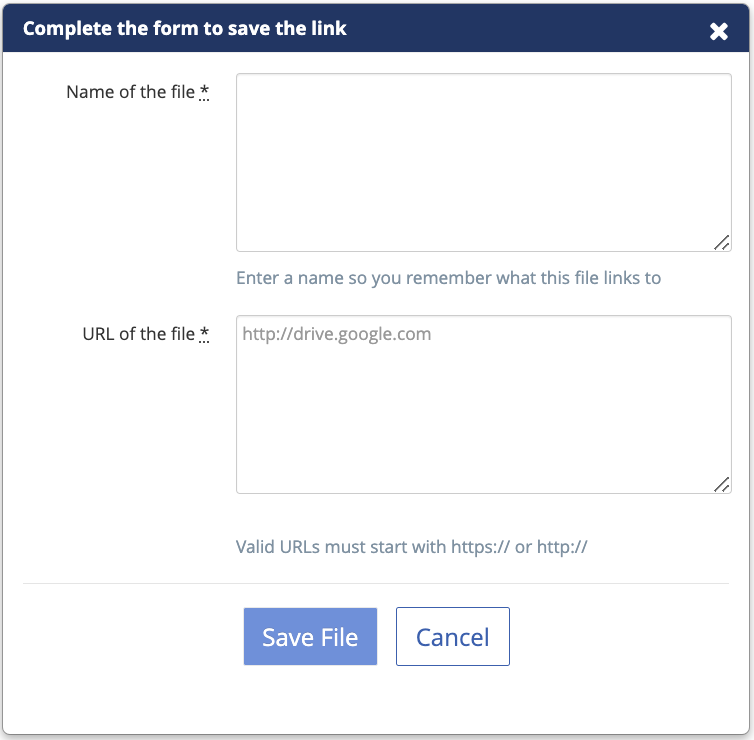
- Add a link: Selecting this option will direct you to name the link and provide a valid URL to the document. Only valid URLs are accepted, you will see a green checkmark next to the URL if the URL you entered is valid.
5. You can select Upload Revision if you would like to upload a new copy of this document. IMPORTANT: Revised files must have the same file name as the original file. If not, a new document will be created.

7. Clicking the menu ( . . . ) to the right of the Name column will download files to your computer or link you to the URL you added.
Was this article helpful?
That’s Great!
Thank you for your feedback
Sorry! We couldn't be helpful
Thank you for your feedback
Feedback sent
We appreciate your effort and will try to fix the article